
Keeping Extension Settings in Sync with Chrome
Using chrome.storage.sync for preferences, defaults, and communication between the different parts of a browser extension.

When you build a browser extension, some of the first things you add are often the least exciting: toggles, preferences, domains, display options.
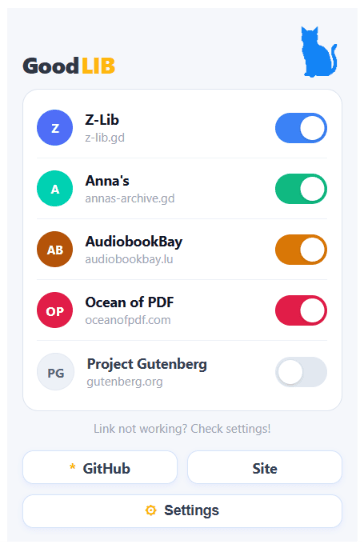
GoodLib has quite a few of them. A user can choose which sources the extension should use, and those choices need to stick after the popup closes, the browser restarts, or the extension gets reloaded. More importantly, the same settings are used by different parts of the extension:
- Popup
- Options Page
- Content Script
That makes this a surprisingly good use case for Chrome's Storage API.
The API itself is simple. The interesting part is figuring out what should live in storage, which storage area to use, and how the different extension contexts react when something changes.
Why Not Just Keep It in JavaScript?
Suppose the popup has a toggle:
let gutenbergEnabled = true;
gutenbergEnabled = false;
Looks fine. Then the popup closes. That variable disappears with it.
The next time the popup opens, the extension has no idea what the user selected unless that value was written somewhere persistent. That's the first job of chrome.storage.
Instead of tying the preference to one particular page or component, you store it as extension data:
A JavaScript variable only exists inside the context that created it, so the popup, options page, and content script could all end up with different values. chrome.storage.sync gives them a shared, persistent place to read and update the same setting instead of each maintaining its own copy.
That difference matters because an extension isn't really one page. The popup has its own lifecycle, the options page has another, and a content script is running alongside an entirely separate webpage. The storage layer gives those pieces somewhere common to read from and write to.
storage.local, storage.sync, and storage.session
Chrome gives extensions a few storage areas, and choosing between them is mostly about how long the data should live and whether it should follow the user across devices.
storage.local: Data is stored locally on the current device. Good for larger local configuration, cached data, and information that doesn't need to follow the user.storage.sync: Data is stored locally and can be synchronized by the browser when sync is available. A natural fit for preferences, small configuration values, UI choices, and settings you'd expect to follow a signed-in browser profile.storage.session: Temporary in-memory storage. Useful when data matters while the extension is running but doesn't need to survive a restart.
For GoodLib, sync is the obvious choice because the stored values are mostly small user preferences.
// Writing preferences to synchronized storage
await chrome.storage.sync.set({ theme: "dark", notifications: true });

// Reading them back later
const settings = await chrome.storage.sync.get(["theme", "notifications"]);
console.log(settings.theme); // "dark"
There is no application database involved here. You're just storing key/value data through Chrome's extension storage system.
Why Sync Fits GoodLib
The settings in GoodLib are small. There are source toggles and configurable domain values:
// Source toggles
const ZLIB_ENABLED_KEY = "zlibEnabled";
const ANNA_ENABLED_KEY = "annaEnabled";
const AUDIOBOOKBAY_ENABLED_KEY = "audiobookbayEnabled";
const GUTENBERG_ENABLED_KEY = "gutenbergEnabled";
const OCEANOFPDF_ENABLED_KEY = "oceanofpdfEnabled";

// Configurable mirror domains
const ZLIB_DOMAIN_KEY = "zlibDomain";
const ANNA_DOMAIN_KEY = "annaDomain";
const AUDIOBOOKBAY_DOMAIN_KEY = "audiobookbayDomain";
Saving a Preference
chrome.storage.sync.set({
  [sourceConfig[source].storageKey]: nextValue,
});
chrome.storage.sync.set(...) persists the user's decision.
And because set() works with individual keys, changing one preference doesn't require loading and rewriting the entire settings object. You can update several values together too:
await chrome.storage.sync.set({
  zlibEnabled: true,
  annaEnabled: true,
  gutenbergEnabled: false,
});
Reading It Back
When the popup opens again, GoodLib reads the stored values:
chrome.storage.sync.get(
  [
    ZLIB_ENABLED_KEY,
    ANNA_ENABLED_KEY,
    AUDIOBOOKBAY_ENABLED_KEY,
    GUTENBERG_ENABLED_KEY,
    OCEANOFPDF_ENABLED_KEY,
  ],
  (result) => {
    setSourceState(getSourceStateFromStorage(result));
  }
);
The flow is simple: the user changes a setting, GoodLib saves the new value with storage.sync.set(), and the preference stays available even after the popup closes. When the popup is opened again, storage.sync.get() reads that stored value and restores the UI to match the user's last choice.
Reacting to Changes
Persistence is only half the problem. GoodLib doesn't have just one UI. There is: Popup, Options Page, and Content Script. The content script is especially important because it's the part actually injecting the search UI into the webpage.
So imagine the user turns Gutenberg OFF in the popup. The popup writes await chrome.storage.sync.set({ gutenbergEnabled: false }). What tells the content script that something changed?
chrome.storage.onChanged, this event is where the storage API becomes much more than a persistence mechanism.
GoodLib listens for changes like this:
const handleStorageChange = (
  changes: Record<string, chrome.storage.StorageChange>,
  areaName: string
) => {
  if (areaName !== "sync") return;

  // Inspect changes
  if (changes[GUTENBERG_ENABLED_KEY]) {
    const { oldValue, newValue } = changes[GUTENBERG_ENABLED_KEY];
    console.log(`Gutenberg toggle changed: ${oldValue} -> ${newValue}`);
    updateInjectedSourceUI(newValue);
  }
};

chrome.storage.onChanged.addListener(handleStorageChange);
Chrome gives the listener the changed values, including the previous and new values when available. So a change can conceptually look like { gutenbergEnabled: { oldValue: true, newValue: false } }.
sync is Not a Database
Chrome's documented quotas are one reason for that: synchronized storage is intentionally much smaller than local storage (~100 KB total quota and 8 KB per item).
So if you need a few KB of settings, sync is great. If you're trying to cache a large amount of data locally, storage.local is a more appropriate fit. And if the data only needs to exist during the current browser session, storage.session may be a better choice. The storage area should follow the role of the data—not the other way around.
Common Pitfalls & Hard-Learned Patterns
localStorage is Not Really the Same Thing
It's tempting to write localStorage.setItem("gutenbergEnabled", "false") and call it done. For a normal website, Web Storage can be perfectly reasonable. Extensions are different. You have multiple extension contexts, extension pages, content scripts, and potentially service workers, and you want the data to belong to the extension, not whichever website happens to be open.
so when Website data then Web Storage vs Extension data then chrome.storage.
Keep Your Storage Keys in One Place
GoodLib keeps keys centralized in a single configuration file:
export const STORAGE_KEYS = {
  ZLIB_ENABLED: "zlibEnabled",
  ANNA_ENABLED: "annaEnabled",
  GUTENBERG_ENABLED: "gutenbergEnabled",
} as const;
That's much safer than scattering strings throughout the project. Because "gutenbergEnabled" and "gutenbergEnabeld" are both perfectly valid JavaScript. Chrome isn't going to tell you that the second one is a typo.
Putting the Whole Thing Together
Here's what actually happens when I turn Gutenberg off in GoodLib:
- User clicks the toggle: The switch flips inside the popup UI.
chrome.storage.sync.set(...): The preference is sent to Chrome storage.- Chrome stores the new value: Stored locally and queued for browser profile sync.
chrome.storage.onChangedfires: Broadcasted automatically across all extension contexts.- Content script receives the event: Catches the change without polling or page refreshes.
- Injected UI updates: Webpage UI updates smoothly in real time.
Further Reading & Source Code
Want to dig deeper into Chrome extension storage? The official Chrome Extensions documentation is the best place to explore the Storage API, permissions, extension architecture, and the rest of the platform.
- Official Documentation: Chrome Extensions Documentation
- GoodLib: Official GoodLib site
- Source Code: GoodLib on GitHub
Thanks for reading! I hope this gave you a clearer idea of how chrome.storage fits into a real extension. If you enjoyed it, feel free to follow me for more posts and open source stuff!